Checking numbers before you send
Screen: HLR, address /tools/hlr. The old address /create-sms/hlr leads here, and so
does /tools on its own.
An HLR check asks the operator whether a number is registered and whether it can be reached right now. It is charged per number, and it delivers nothing: the person whose number you check sees no message and learns nothing about the check.
The same word for three different things
This is the part that causes the arguments, so it comes first. In the cabinet, HLR names three things that are related but not the same.
| Where you meet it | What it is | What the subscriber gets |
|---|---|---|
The HLR tool, /tools/hlr | A check of its own: numbers in, verdict out | Nothing at all |
| The HLR switch in the send form | A surcharge added on top of each message | The message, as usual |
| The HLR mark in the reports | A label saying the check was run on that row | Nothing extra |
The difference between them is the text. With a message the numbers are checked and then the message goes out, and you pay for both. Without a message — which is exactly what this tool does — only the check happens, and nothing is delivered to anyone.
So HLR as a mode, rather than as an addition to a message, is a check and only a check. That is what this tool is for.
In the send form the switch belongs to the message: the numbers are checked, and then the message goes out. When you want the answer on its own, without sending anything, the tool below is the way.
The mark in the reports
In the campaign and message reports — the Manual mailings screen at
/analytics/single-sms and the API reports screen at /analytics/api — a checked row
carries a small HLR icon next to its title. A pale icon means the check ran and nothing
was charged for it; a solid one means it was charged, and the price cell then shows the
surcharge separately, after a plus sign.
Inside a row, the route is shown as a chain: the checking gateway first, the sending gateway after it. When the check reports that the number cannot be reached at all, the sending gateway is struck through — the check ran, and the message stayed where it was.
Creating a check
The check is created in a side panel, opened by the button with the plus.
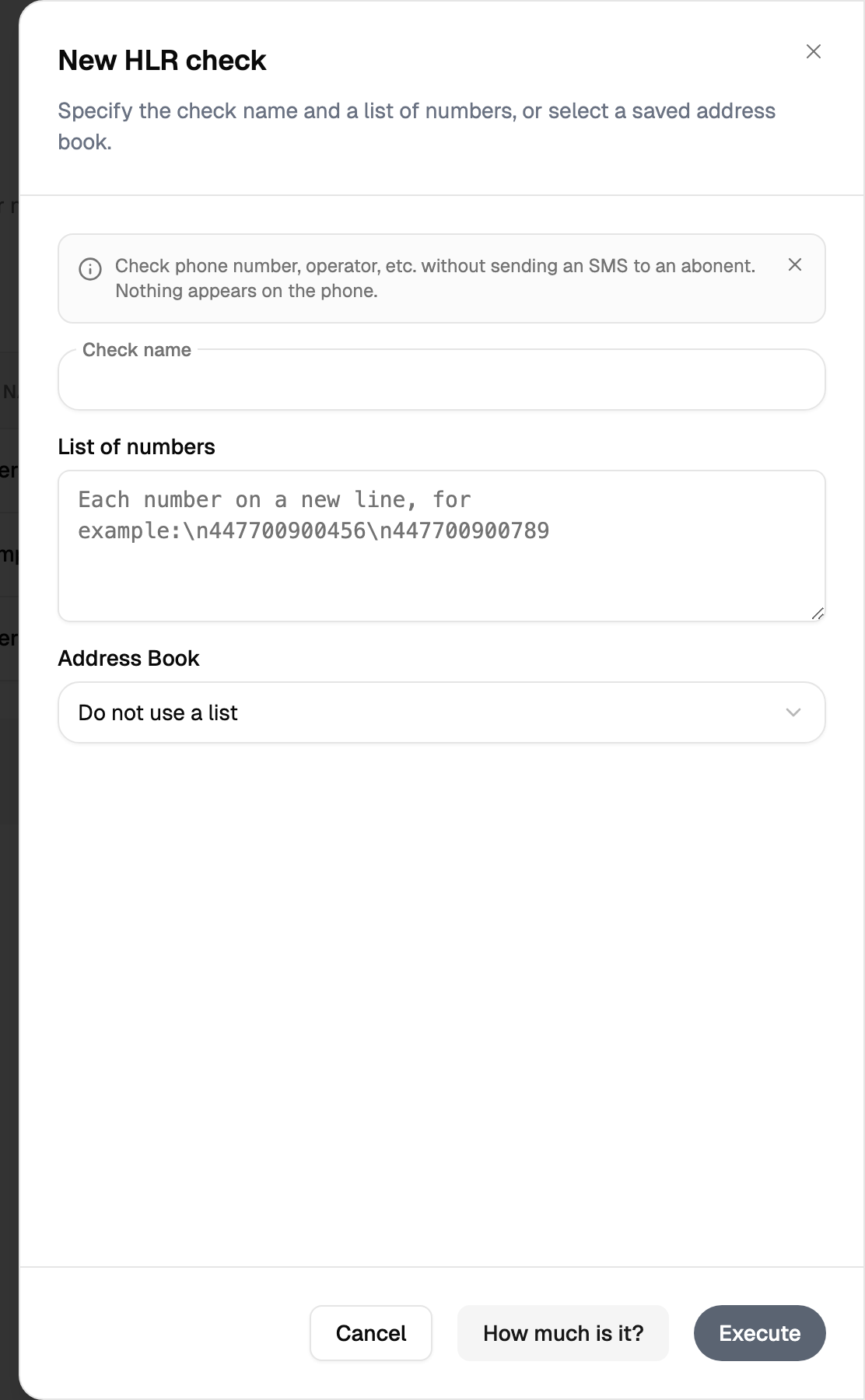
| № | What to fill in |
|---|---|
| 1 | A name — it is required, and it is how you find this check in the list afterwards |
| 2 | The numbers, one per line, in the large field |
| 3 | Or an address book chosen from the list, instead of the numbers |
Only one of the two is in use at a time. As soon as there is anything in the numbers field the book selector rests, and as soon as a book is chosen the numbers field rests and says so. The list offers the books you keep in the address book.
Two buttons finish the panel. The price button counts the cost and leaves the check to the second button — it is the same "how much will this cost" calculation the send form uses. The execute button creates the check.
The button starts the work and gives back its number straight away, while the result arrives a little later — the progress and the outcome appear on the same screen. Keep the tab open until it reports that it is done, and press the button once: a second press starts the work a second time.
When the check finishes, the progress is replaced by the breakdown: a row per country and operator, the quantity, the price per unit, and the total at the bottom. It is the same breakdown the send form shows for the cost of a campaign, which is why the column headings read the way they do.
Closing the panel leaves the check running: the row stays in the list below and the result appears there.
The list of checks
The screen itself is the history of everything you have checked.
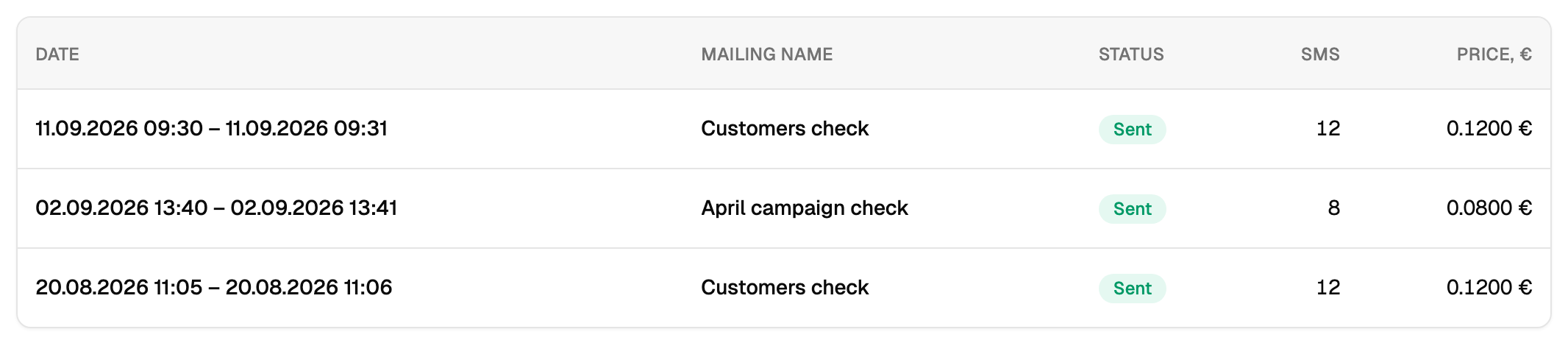
| Column | What it holds |
|---|---|
| Date | The start and the finish; while nothing has started yet, the time of creation |
| Name | The name you gave the check |
| Status | Where the check is now |
| Quantity | How many were checked |
| Price | What it cost, in your currency |
Above the table there is a period picker; below it, page navigation and the choice of how many rows to show. Both the period and the page live in the address, so a reloaded page — or a link you send to a colleague — opens on the same view.
A check shows one of these statuses: "Moderation", "Waiting for sending", "In progress", "Sent", "Error". "Sent" here means the check is finished.
Until the first check, the screen shows an invitation in the middle with its own create button. Once there is at least one row, the create button sits in the toolbar.
Limits, prices and the set of available options are tuned to your account. This documentation gives the meaning rather than the figure: the current value is always shown on the screen, next to the field it applies to.