Filling in your details before they lock
Screen: Settings → Profile, address /settings?tab=profile.
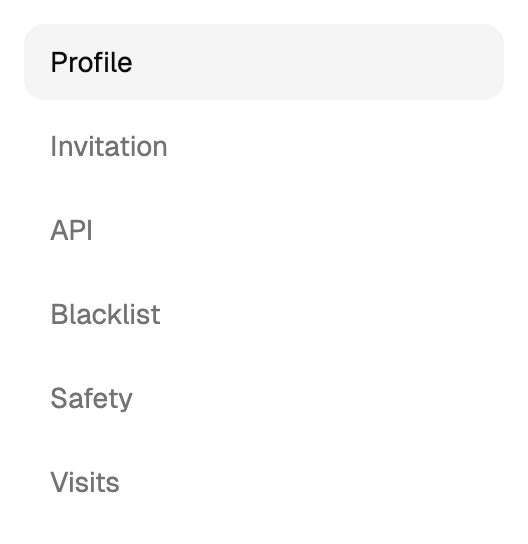
Settings is one screen with tabs. The profile, security, keys, the black list and the access
log all live under /settings, and the tab is chosen by the tab parameter in the address.
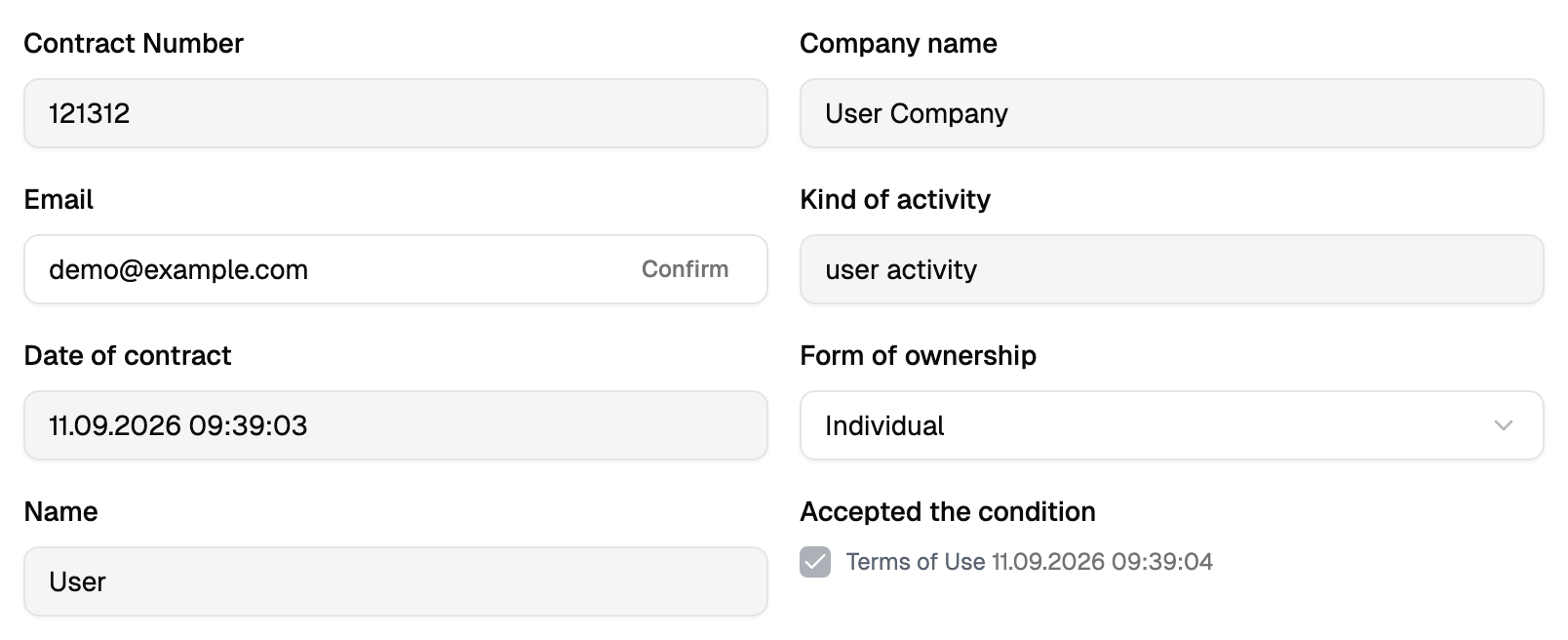
The profile has two blocks: company data and contact information. They behave differently — the first one locks itself, the second one stays editable.
The order that matters
Three fields — name, company and kind of activity — are editable while the account has no e-mail saved. The moment you save an e-mail, they turn grey and read-only.
This surprises everyone. The lock does not wait for the confirmation letter: an e-mail merely present on the account is enough. So put the name, the company and the kind of activity in first, check them, and only then fill in the e-mail — in the same save or a later one.
Once they are locked, support changes them for you: write with the new values.
The e-mail itself follows the opposite rule: it stays editable until it is confirmed, and becomes read-only after that. A confirmed address is changed by support, so check it before you press the confirmation button.
Confirming the e-mail
Next to the field there is a button that sends a letter with a code, and a window that asks for that code. Two ways to finish:
| Way | What happens |
|---|---|
| The code by hand | You copy the code from the letter into the window and confirm |
| The link in the letter | It opens the profile with the code already in the address; the cabinet reads it, confirms and cleans the address |
A confirmed address gets a green tick and a line saying when it was confirmed, and the field stops accepting input.
Where the contract details come from
| Field | Where the value comes from |
|---|---|
| Contract number | Your account number in Blackbox Business |
| Contract date | The date and time the account was registered |
Both come with the account and are read-only from the first day. They are shown so you can quote them to support and put them in payment documents.
Form of ownership
A list, and one of the entries is legal entity. The choice has consequences on the same screen:
- picking legal entity makes the mailing address required, and the accountant's phone number required and checked for format;
- choose one of the values: the form saves as soon as something is chosen;
- the form of ownership can be fixed on your account. Then the field keeps its value, a change comes back with a message on the field, and support sets the new value.
The offer and its version
When you work with Blackbox Business under an offer, a checkbox appears under the company data with a link to the document. The link opens the text of the exact version that applies to you.
Once the current version is accepted, the checkbox is locked and the acceptance date is shown beside the link.
When a new edition comes out, the cabinet shows a window with one button — it takes you to the settings. Read the document there, tick the checkbox, save it, and the cabinet carries on as usual.
The same happens on save: if the edition changed while you had the form open, the checkbox clears itself and the document opens for reading. Read it, tick it again, save again.
Contact information
This block stays editable and can be corrected at any time.
| Field | What it is for |
|---|---|
| Country, region, city | Choosing a country reloads the regions and clears the region and the city; choosing a region clears the city |
| Contact person and e-mail for rates | Whom to write to about commercial matters |
| Accountant's phone and accountant's e-mail | Whom to write to about documents and payments |
| Low-balance notification | The threshold at which the cabinet warns you; the currency is shown inside the field |
| Accounting details, mailing address | Free text for invoices and paper post |
The whole page is saved by one button at the bottom. If something is wrong, the fields are marked and nothing is sent.
Where the time zone lives
The time zone lives on your account. It is taken from your browser at the moment of registration and kept there; every save of the profile sends the stored value back untouched.
So every date in the cabinet — reports, schedules, the access log — is shown in that zone. Support sets a different one on request.
Limits, prices and the set of available options are tuned to your account. This documentation gives the meaning rather than the figure: the current value is always shown on the screen, next to the field it applies to.