Creating an account
Screen: Sign up, address /login, the second tab of the sign-in screen.
An account in Blackbox Business takes two steps: the form, and the code from the SMS.
Your login is the phone number, not your e-mail. The number you register with stays your login.
Your name, company and type of activity stay editable in the settings while the account has no e-mail address on it. Once an e-mail is saved, those three fields — together with the contract number and date — are kept as they are, and support changes them at your request.
The form
Have the phone number at hand: it becomes your login. The fields appear one after another and the password comes last — it is a single form that unfolds as you type, and everything you have already entered stays in place.
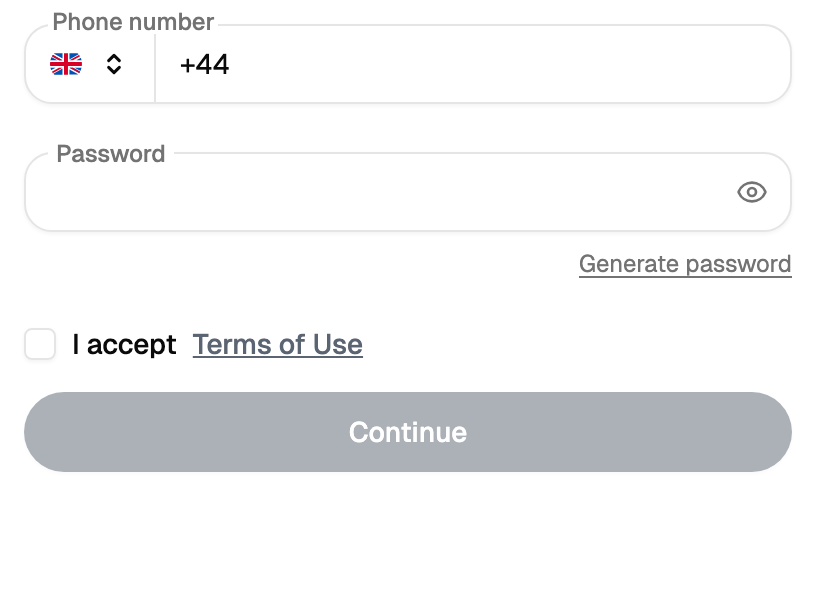
Next to the password field there is a button that generates a strong password for you, and it is worth using: the same password also protects your balance.
Before submitting you agree to the terms of service. The text opens in a panel right on the screen, and the version you agreed to is recorded together with the account.
If you came from an invitation link, the form says so above the fields. The invitation is applied to the account being created — you do not need to enter the code anywhere by hand.
Confirming the number
After the form is submitted the cabinet sends a code by SMS, and the screen switches to asking for it. This is the second and last step.
The code can be re-sent from the same screen. If the attempts run out, wait a little and the screen opens for input again.
Until the code is entered, the account exists and waits. If you close the tab at this point and come back later, the sign-in form asks for the code from the SMS instead of the password. That is the same confirmation, just reached from the other tab.
When the code is accepted you are signed in immediately, and the cabinet opens the two-factor authentication screen. Setting it up is your choice, and the step can be skipped.
What is already on the account
The time zone is taken from your browser at the moment of registration, and everything you see later — the time of sending, reports, statistics — is shown in it. It can be changed in the settings.
The balance is in the header, in front of you from the very first screen.
The first thing to do after signing in is to register a sender name: it is what the recipient sees, and sending starts with it.
If the number is already registered
One number is one account. If the cabinet says the number is taken and you do not remember the password, restore access from the sign-in screen — the account is already yours.