Ways to send
Screen: New campaign, address /create-sms. Opened by the button above the
left menu — and the same channels are in the menu itself, under Send SMS.
The screen is a set of cards, and each one is a separate way to send. They are not steps — you pick one and go.
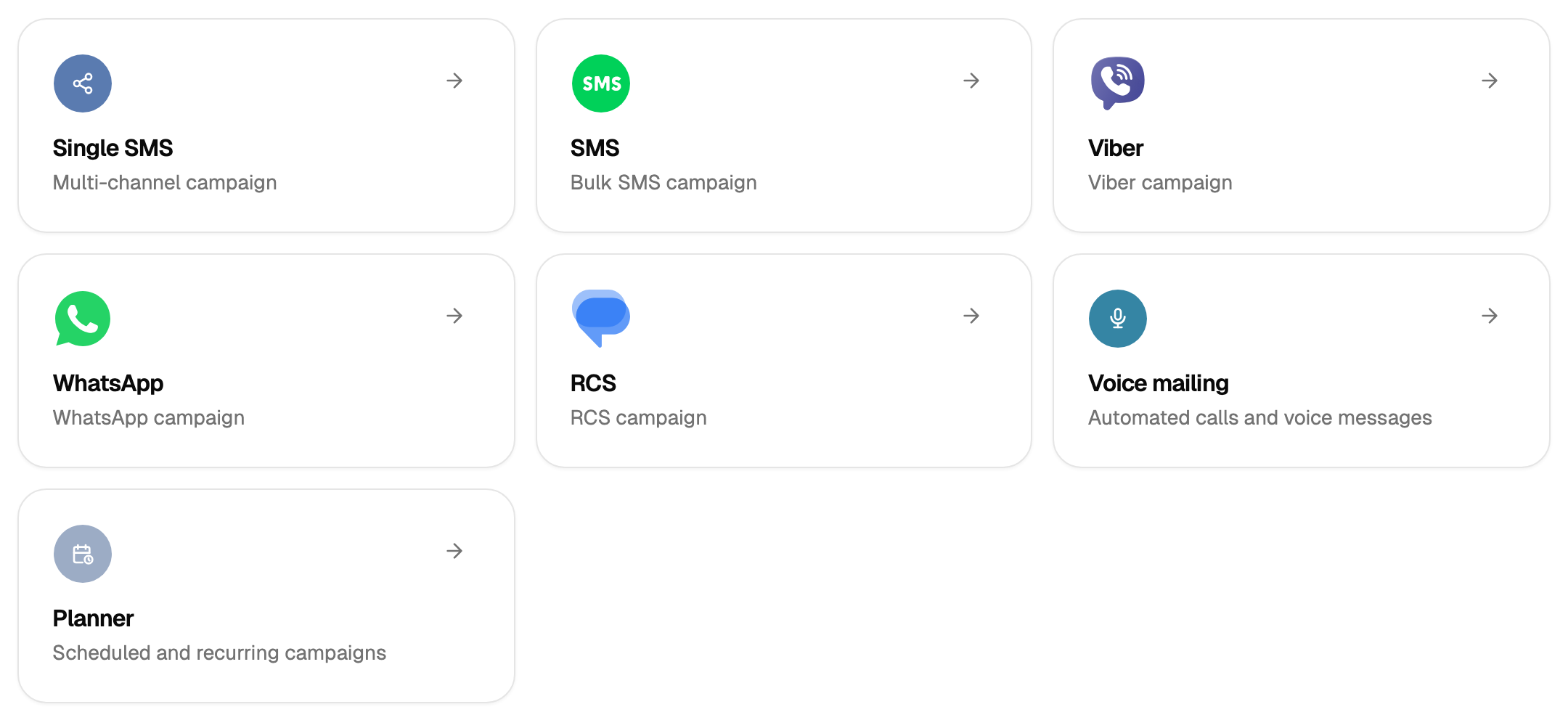
| Card | When to use it |
|---|---|
| Single SMS | One message to one number, typed by hand |
| SMS | A bulk campaign over address books |
| Viber | The same, through Viber |
| The same, through WhatsApp | |
| RCS | The same, through RCS |
| Voice mailing | Automated calls and voice messages |
| Planner | Scheduled and recurring campaigns: a daily pick of recipients by a date in the address book |
Single against bulk
The difference is not the number of recipients but where they come from. In a single message the number is typed by hand, and it is one number. In a bulk campaign the recipients come from address books.
Everything that makes a campaign flexible — variables in the text, an even spread over time, a lifetime for the campaign, an unsubscribe link — belongs to the bulk form. The single form is the short way to send one message.
The three steps
All the bulk forms are the same wizard: recipients → text and settings → when to send. The channels differ in the first step and in what the message may contain; the second and third steps are common, and this documentation describes them once.
Everything is on this screen
The cards here are the whole set of ways to send with Blackbox Business, and the set follows your account. Links and bookmarks pointing anywhere else lead back to this screen, so start from a card — or from Send SMS in the menu, which lists the same channels by name.
Two things that are not ways to send live in the menu under Settings: Sender ID, the name the recipient sees, and Templates, the texts you keep. The send forms pick up both, so set them up once and they are offered where you need them.
Viber, WhatsApp, RCS and Voice mailing open a page about the channel with a one-click request: press it, and the request goes to your manager, who sets the channel up and answers you.
Limits, prices and the set of available options are tuned to your account. This documentation gives the meaning rather than the figure: the current value is always shown on the screen, next to the field it applies to.