How the cabinet is arranged
Screen: Home, address /.
The Blackbox Business cabinet has three places to look for things, and they answer different questions: the home screen tells you the state of affairs, the left menu holds the sections you return to regularly, and the button above the menu starts a new campaign.
The home screen
The home screen is a set of blocks, each of which is a shortcut into a section: it shows the current state and takes you straight to the screen behind it.
| Block | What it is for |
|---|---|
| Quick start | Four steps for a new account: register a sender name, add contacts, send, look at the report |
| Quick single SMS | One message to one number, sent right here, without the three-step wizard |
| Finances | Balance and the recent movement of money, first on the screen because that is what most visits are for |
| Statistics | Sent and delivered over the recent period, a shortcut into the Statistics section |
| Sender names | Which names are registered and what state they are in |
| The map | Where your most recent campaign went, drawn on the world |
The blocks load one after another rather than all at once. A block that is still loading shows a placeholder, and that is normal.
The left menu
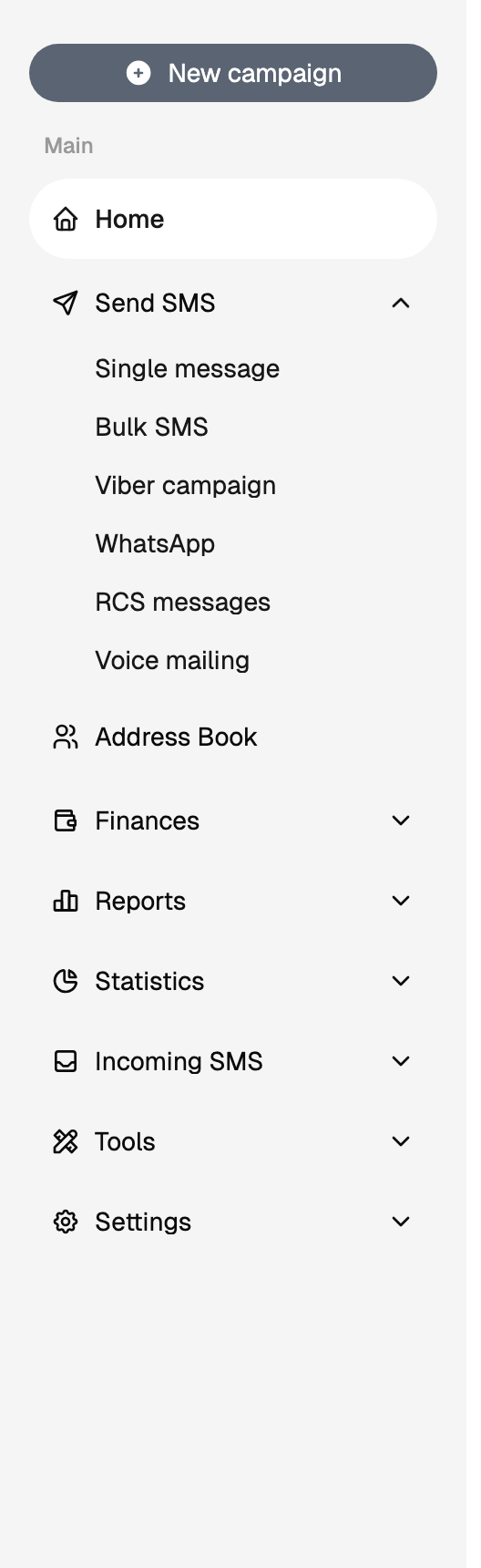
The menu holds what you come back to. Send SMS sits directly under Home and unfolds into the six channels — Single message, Bulk SMS, Viber campaign, WhatsApp, RCS messages, Voice mailing. Under it come the address book, finances, reports, statistics, tools and settings; every heading with a chevron unfolds into its own list the same way.
The New campaign button above the menu opens the same channels as cards, with the planner beside them. Whichever route you take, you land on the same forms — the menu is the shorter one once you know which channel you need.
Two more things live outside the menu. Support is in the user menu in the top right corner, and several screens open by their address alone — they are collected on a separate page of this documentation.
The menu matches your account: the sections your permissions cover are in it from the start. Need one more — ask whoever invited you to the account, or write to support.
Limits, prices and the set of available options are tuned to your account. This documentation gives the meaning rather than the figure: the current value is always shown on the screen, next to the field it applies to.
The header and the user menu
The header shows the company name and the balance — the same number as in the Finances block, kept in front of you on every screen.
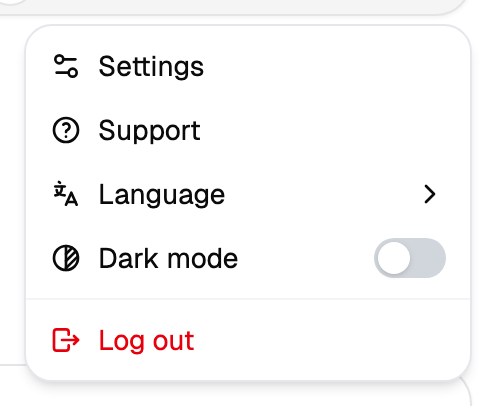
The menu under it holds five things: Settings, Support, the interface language, the dark theme switch, and Sign out. Signing out asks for confirmation, because it ends the session in this browser.
The language is switched here, and the choice is remembered on the account rather than in the browser: sign in from another computer and the cabinet will be in the same language.
Where to go with which question
The distinction between Reports and Statistics is worth remembering from the start, because it is the one that costs newcomers the most time. Reports is a line-by-line log where a specific message can be found. Statistics is totals: it answers how much and how well, over a period.