Sending your first message
The route from an empty account to a message in the recipient's phone. One SMS to one number — everything else in the cabinet builds on top of this.
1. Register a sender name
Screen: Sender ID, address /create-sms/alphanames.
The sender name is what the recipient sees instead of a phone number, and sending starts with it. The name is reviewed by the Blackbox Business team, so this is the one step in the route that takes as long as it takes; the rest are minutes.
| № | Action |
|---|---|
| 1 | Open the screen and press the button that adds a name |
| 2 | Type the name itself — Latin letters and digits, the length is shown next to the field |
| 3 | Fill in the questionnaire |
| 4 | Save and wait |
The questionnaire asks for the legal entity, the tax number, contacts, the website, the type of activity, the subject of the messages and examples of their text.
While the review is under way, the name is on its own screen with its status, so you can see the step it is at.
2. Open the quick send form
The fastest way is the Quick single SMS block on the home screen. It is the same sending, without the three-step wizard: recipient, sender name, text, send.
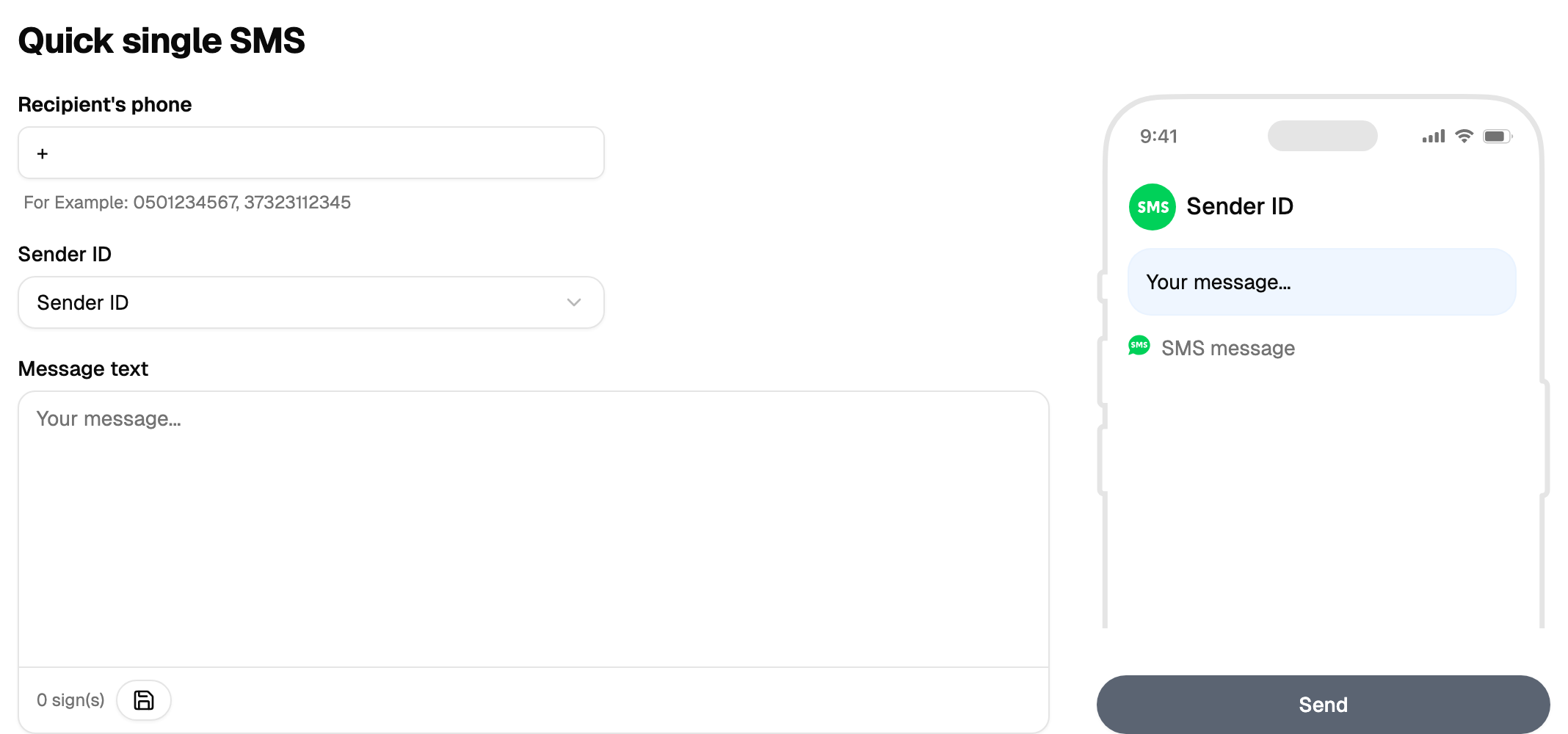
The full form behind the New campaign button comes into its own for bulk campaigns: it adds the steps for a list of recipients and for a start time.
3. Enter the number and the text
The number goes in international format, with the country code. For the first attempt take something short in Latin letters: the length of one part depends on the alphabet, and the counter next to the field shows how many parts your text makes.
Send it to your own phone. This is the way to see what the recipient sees: the sender name, the text and the arrival time.
4. Send
Press Send. The message is charged to the balance, a message to your own number included — it costs the same as any other.
The button starts the work and gives back its number straight away, while the result arrives a little later — the progress and the outcome appear on the same screen. Keep the tab open until it reports that it is done, and press the button once: a second press starts the work a second time.
If the result says the campaign did not start, the reason is almost always one of three: the money on the balance, a sender name still under review, or a number in a different format.
5. Find it in the report
Screen: Manual mailings, address /analytics/single-sms.
The message appears there as a separate line with its status. Delivery takes a moment: the status moves to "Sending…" and then to "Delivered", and the last step happens on the side of the mobile operator.
That is the whole route. Everything else in the cabinet is a variation of it: many recipients instead of one, a text with variables, a scheduled start time, another channel.