Protecting the account and seeing who used it
Screen: Settings → Password and security, address
/settings?tab=password-and-security. Two blocks: the password, and the second-factor
methods. The access log lives on the tab next to it, /settings?tab=visits.
This page describes the settings screen. What the second factor looks like at sign-in — which method is asked for, how to switch to another one, what happens after several wrong passwords — belongs to the sign-in page and is described there.
Changing the password
The current password is not asked for: you are already signed in. Two fields, new and repeat, and a card of recommendations beside them.
The rules are checked, not suggested. A password is accepted only when all of this is true:
| Rule | What is checked |
|---|---|
| Length | the number of characters named in the card beside the field |
| Case | at least one capital and one small letter |
| Digit | at least one |
| Special character | at least one, for example a punctuation mark |
| Different characters | the same character three times in a row is refused |
| No dates | a year or a date inside the password is refused |
The last two are the ones people trip over: a birth year or a repeated letter is enough to have the password refused, even when it is long.
After a successful change the cabinet either carries the current tab over on a fresh session, or signs you out a moment later. Both are normal — the second one just means you sign in again, with the new password.
The three methods
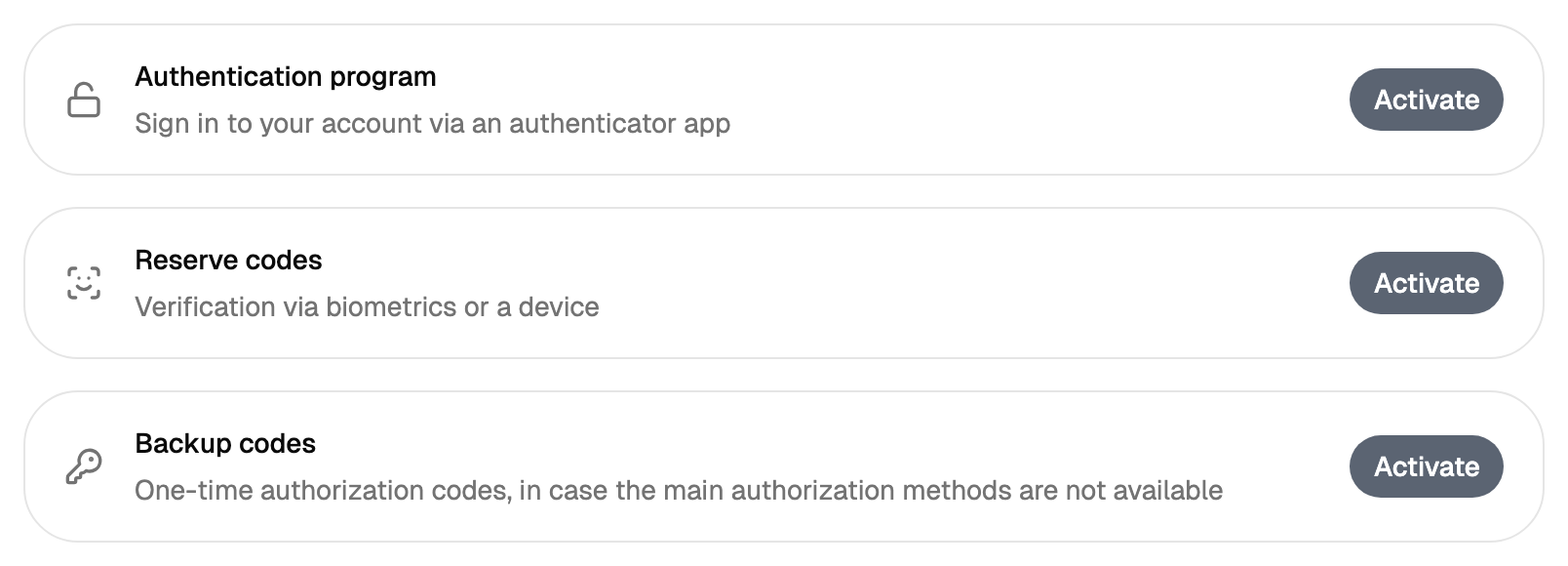
Each method is a card with its own button: activate when it is off, details when it is on. A method that is on is marked with a badge. They are independent and can be combined.
| Method | What it is | What it needs |
|---|---|---|
| Authentication program | A code-generating app on your phone | A QR code scanned once |
| Security key | A hardware key, or the one built into the device | A browser that works with keys |
| Backup codes | A list of one-time codes | Somewhere safe to keep the list |
The line under the security-key card tells you how the browser you are in stands with keys. On a browser or a device that works with them the button is active.
Turning on the authentication program takes two steps
The secret is created by the first step, before you type anything, and from that moment the method counts as switched on. Enter the code from the app in the same window and the method is ready.
If the window did close halfway, sign in with a backup code and set the method up again — that is exactly what backup codes are for. Support helps when there are none left.
The security key
The panel lists the devices already registered, each with its name and the date it was added, and lets you add more. Removing one device leaves the others working; disable on the whole method asks for confirmation and switches it off entirely.
Registering and removing go through the browser's own dialog, so the key or the fingerprint is asked for by the device, not by the cabinet.
Backup codes are shown once
Generating produces a list. Each line is hidden behind dots with an eye to reveal it and a button to copy it; above the list there is copy all and download as a text file.
While the fresh codes are there, the panel deliberately stays put on Escape and on a click outside — only the button closes it. Open the panel again later and it shows the same rows under dots, so keep the copy you saved.
Regenerate makes a new set whenever you need one, and the old set stops working.
Disable removes the codes as a method and asks for confirmation first.
Switching a method on or off touches your sessions
Every change to the methods hands the current tab a fresh session. In practice that means other places where the account was signed in are cut off, and the tab you are working in stays. If you suspect somebody else is in your account, changing the password and switching a method on is what actually removes them.
Who signed in: the access log
Screen: Settings → Access log, address /settings?tab=visits. The older address
/analytics/visits leads to the same place.
Three lists, each paged separately:
| List | Columns |
|---|---|
| Web sign-ins | Date and time, IP address, browser |
| API calls | Date and time, IP address, method, the request and the answer |
| SMPP connections | Whether the session is active, when it started and ended, IP address, action |
The API list is the useful one when an integration misbehaves: the request and the answer are shown exactly as they were sent, so you can see what your system actually said.
It shows who came in, when and from where. If you see a stranger in the list, change the password and switch on a second factor — that is what ends the other sessions.