Asking support, and what is arranged for you
Screen: Support, address /support. A list of your tickets, and the button that starts
a new one.
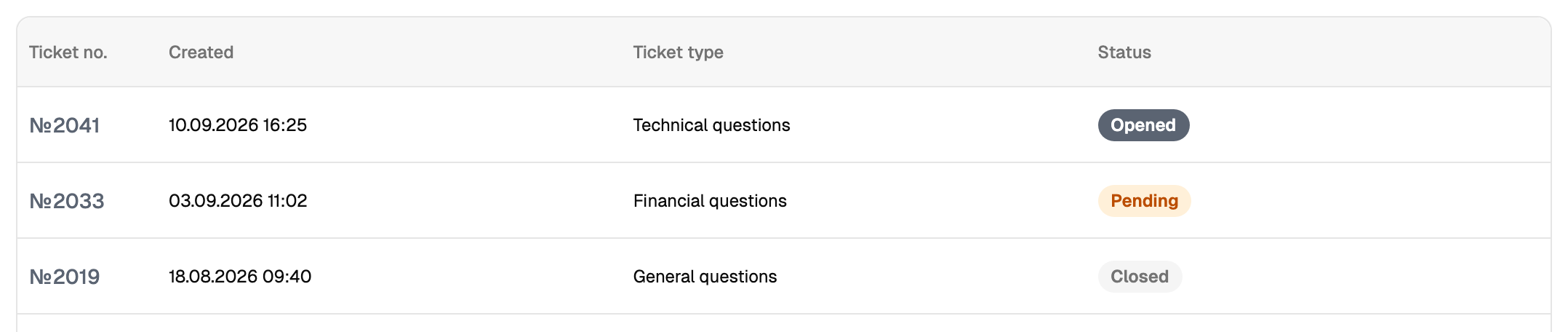
| Column | What it says |
|---|---|
| Number | Quote it when you write anywhere else about the same problem |
| Created | Date and time |
| Type | The subject you chose when you opened it |
| Status | Open, waiting, or closed |
A row opens the ticket. The list is paged, and it fits itself to your window — a taller window shows more rows.
Creating a ticket
The button opens a panel with three fields.
| Field | What goes in it |
|---|---|
| Subject | One of three: a general question, a financial question, a technical one |
| Description | Required. The panel sends a ticket once there is text in it |
| Attachment | One file; the size limit is shown in the panel |
Choose the subject honestly: it decides which desk the ticket lands on, and a financial question filed as a technical one waits longer for no other reason.
When the ticket is created the cabinet takes you straight to it.
Support sees the ticket, not your screen. What actually shortens the exchange:
- the number of the campaign or the ticket you are asking about, not "yesterday's send";
- the phone number in question, in full;
- the exact wording of the error, copied rather than retold;
- what you expected to happen, and what happened instead.
A screenshot as the attachment is worth several paragraphs — but a screenshot instead of the numbers still leaves support guessing.
The ticket and the chat are one thing seen twice
This confuses people, so it is worth being blunt about it.
| View | Address | What it is for |
|---|---|---|
| The ticket | /support/ticket/<number> | The card: subject, when it was created, status, your description, the attached files, and support's first answer |
| The chat | /support/chat/<number> | The whole correspondence, in order, with everything both sides attached |
They are the same ticket. The card is where you check the state of things; the chat is where the conversation actually happens. Support's first answer on the card carries an open chat button, and that is the intended way through.
The conversation
The chat has a text field, a paperclip and a send button. Enter sends the message.
- Several files go in at once; the paperclip shows how many and how large.
- Each attached file travels as its own message, so a reply with three files appears as three lines in the correspondence.
- The chat refreshes itself while the ticket is open, so an answer appears without reloading the page.
- Files that came from support are downloaded by clicking them in the correspondence.
Statuses, closing and reopening
| Status | What it means |
|---|---|
| Open | The ticket is in work |
| Waiting | The ball is on one side and the other is expected to move |
| Closed | Finished |
The button at the top of the ticket closes it, and asks for confirmation first. A closed ticket keeps the whole correspondence for reading and shows a line in place of the text field.
The same place holds the opposite button. Reopening a closed ticket returns the whole correspondence and lets you write again — which is much better than starting a new ticket about the same problem, because support keeps the history.
What support does for you
Some things are arranged from the other side of the desk. Each of these is one message to support or to your manager, and it is done.
| What you need | How it is done |
|---|---|
| A short number | Support allocates it and tells you when it is ready |
| A different e-mail after it is confirmed | Support replaces it — send the new address |
| A different time zone | Support sets it on your account |
| The locked profile fields | Support updates the name, the company and the kind of activity |
| Closing the account | Support does it at your request |
| A credit limit | Agreed with your manager; the cabinet then shows it on the account |
| A reservation for a channel | Agreed with your manager |
| Signing the other sessions out | Change the password or switch a second factor on — the other sessions end at that moment |
Write with the details in hand — the account number, the address, the value you want — and it takes one exchange.
Limits, prices and the set of available options are tuned to your account. This documentation gives the meaning rather than the figure: the current value is always shown on the screen, next to the field it applies to.