Sending to Viber
Screen: Viber, address /create-sms/viber, or Send SMS → Viber
campaign in the menu.
The same three-step wizard as a bulk SMS campaign, with two differences: the message can be richer than text, and recipients may be typed in by hand.
Connecting the channel
The Viber card is on the send screen, and behind it a page about the channel: what it gives, how it looks on a phone, and a request in one press. Press it, and the request goes to your manager, who sets the channel up and answers you directly.
The kinds of message
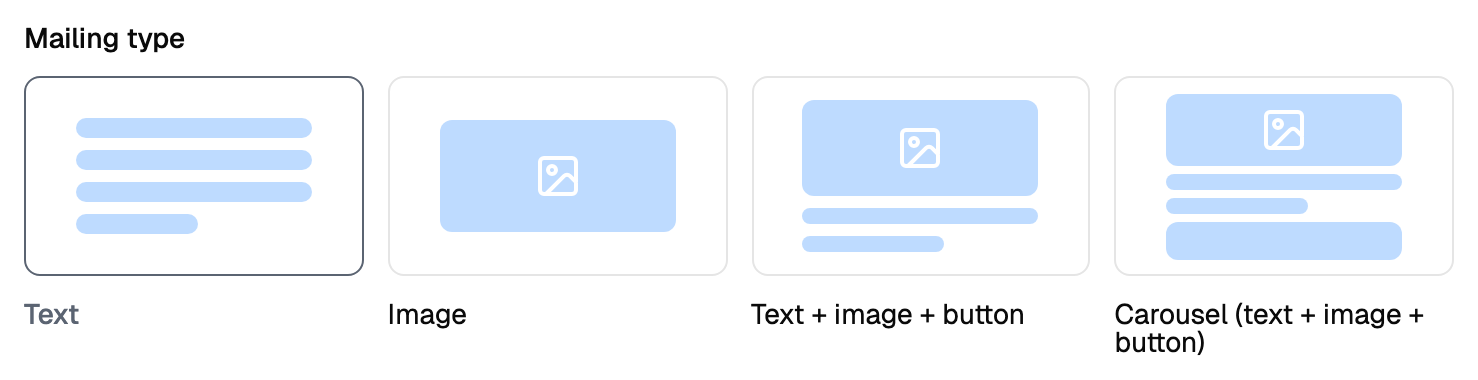
| Kind | What it contains |
|---|---|
| Text | Text only |
| Image | An image only |
| Button | Text, an image and a button with a link |
| Carousel | Several slides, each with its own image, text and button |
The text on a button is short, and the counter next to the field shows how many characters are left. A message can carry two buttons.
A carousel is built slide by slide, each of them filled in separately, and one slide always stays in place.
Limits, prices and the set of available options are tuned to your account. This documentation gives the meaning rather than the figure: the current value is always shown on the screen, next to the field it applies to.
Recipients
Unlike a bulk SMS campaign, here the numbers can be typed in by hand as well as taken from address books. Everything else about the first step is the same.
The common steps
The text, the length counter, the variables, the additional options, the cost and the start time work exactly as they do for SMS, and this documentation describes them once, on the pages of the ordinary campaign.