The message text
Step 2 of every send form. The same for SMS, Viber, RCS and the scheduler, which is why it is described here once.
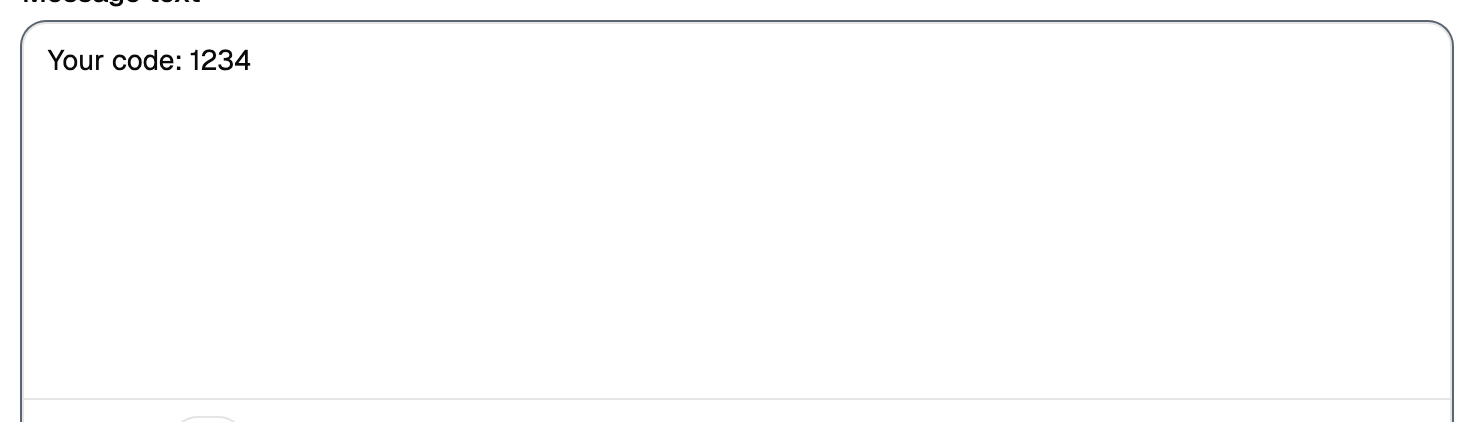
Characters and parts
The counter under the field shows two numbers: how many characters you have typed and how many parts the message will be split into. The second one is what you pay for.
The alphabet decides where the boundary falls. A message in Latin letters fits far more characters into one part than the same message in Cyrillic, because Cyrillic switches the encoding for the whole message. One Cyrillic character anywhere in the text is enough.
A text that looks short can already be two parts, and one that looks long can still be one. The counter is the honest answer, and it updates as you type.
Variables
A variable is a number in braces: {1}, {2}, and so on. It is replaced with the value
from the corresponding column of the address book for each recipient.
The numbering is positional and matches the column order, not the column names. The first column is always the phone number, so the substitutions start from the second one.
An empty cell substitutes nothing, and the message goes out with a gap where the value should have been. It is worth looking at the book before a campaign with variables.
The sender name
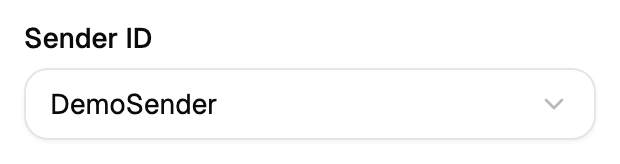
Approved names are the ones offered. In a bulk campaign the name is chosen from the list; the single message form also lets you type one in.
Latin and Cyrillic
The switch above the field is not a mode — it rewrites the text. Pressing it converts what you have typed by transliteration, and the result stays in the field as ordinary text. It is a way to fit a Cyrillic message into fewer parts, at the cost of how it reads.
Convert first, then read what came out. Transliteration does not know your brand names.
Emoji and the preview
Emoji can be inserted, and they count as characters like everything else, usually expensive ones. The preview on the right shows the message as a phone would, and it is the fastest way to notice that a variable was left unfilled or that the text was cut.
Templates
A ready text can be inserted from the templates, and the text you have written can be saved as one. A template only saves you typing: the price and the delivery stay exactly the same.
Limits, prices and the set of available options are tuned to your account. This documentation gives the meaning rather than the figure: the current value is always shown on the screen, next to the field it applies to.