Sending a bulk campaign
Screen: SMS, address /create-sms/bulk, or Send SMS → Bulk SMS in the
menu.
A campaign goes out in three steps, and the form keeps you on one of them at a time: who receives it, what it says, when it leaves. You can step back at any point — nothing is sent until the last button.

Step 1: a name and the recipients
The campaign name is required. It is not shown to anyone: it is how you find this campaign among hundreds in the reports six months from now. "Discount 20 for the March list" is a name; "campaign 4" is not.

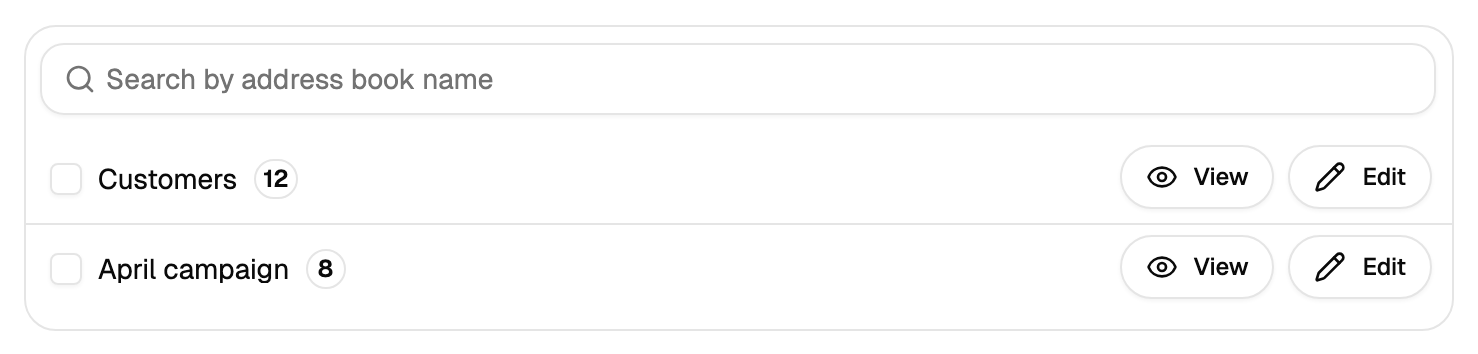
Recipients come from address books — a campaign always works off a list, and for one number typed by hand there is the single message form.
The books are shown as a tree, and one thing about it is worth knowing before you click: selecting a parent selects everything nested inside it. That is the single most common reason a campaign reaches more people than intended. The counter beside the tree always shows what is actually selected — read it before moving on.
The side panel shows how many recipients there are and what it will cost. The number actually sent can be smaller: duplicates across the selected books, numbers in the black list and numbers that turn out to be invalid drop out while the campaign is being prepared. The campaign card shows the final figures.
Step 2: the sender name and the text
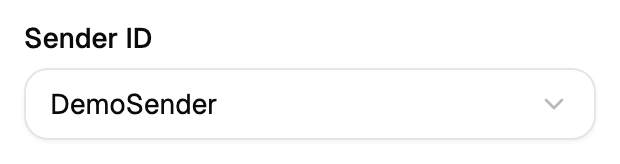
The sender name is chosen from the list of approved ones — a campaign does not let you type a new one, so register it in advance on the Sender name page.
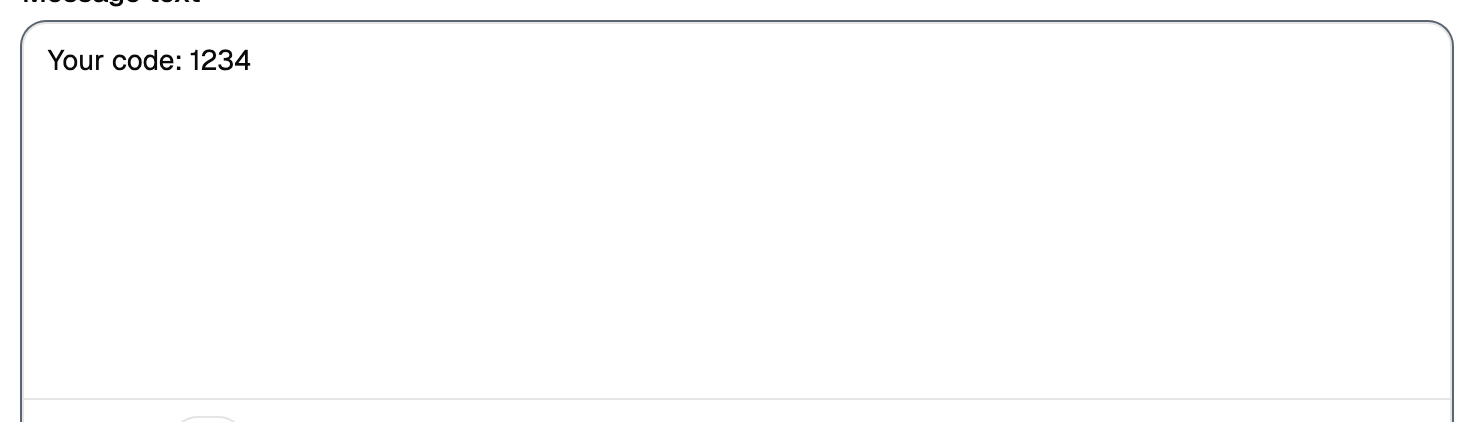
The text, the length counter, the variables from the book columns
and the additional options work the same way in every channel, and
this documentation describes them once. Variables are what make a campaign personal: a book
column becomes {1} in the text, and every recipient gets their own value.
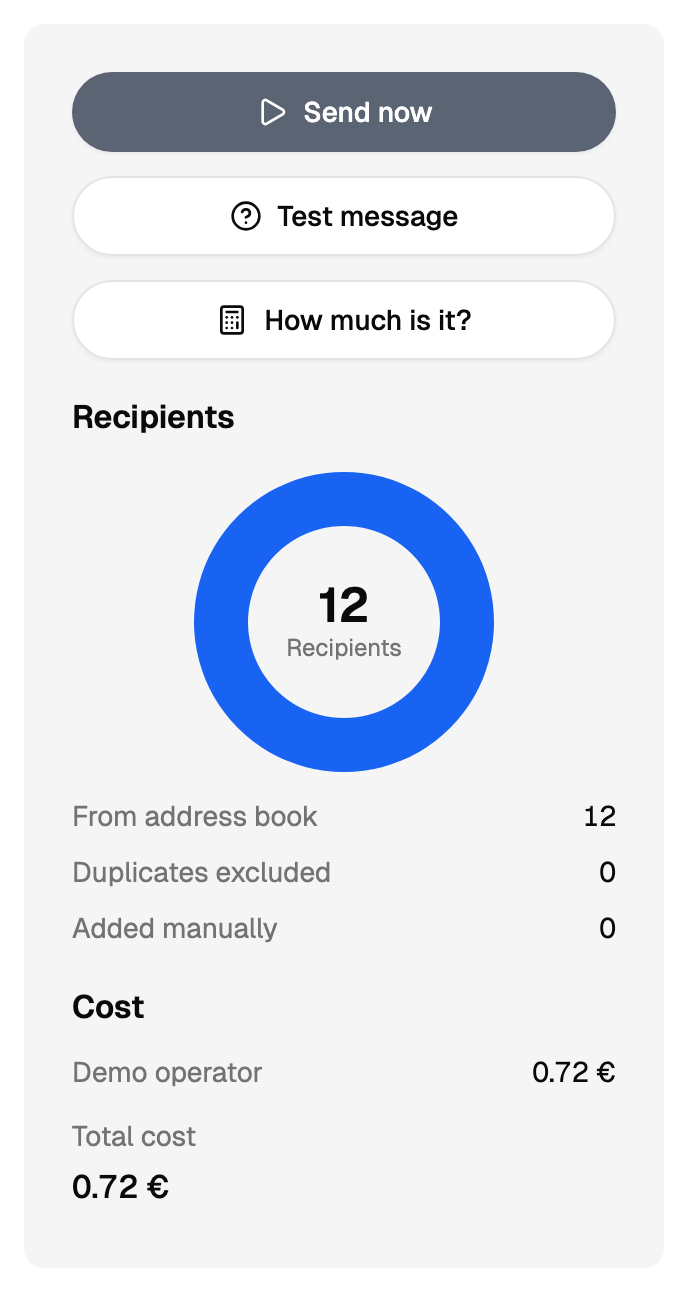
The side panel keeps count as you go: how many recipients the selected books give, how many duplicates dropped out, and what the campaign will cost. The cost follows the text — a longer message splits into more parts, and the price follows with it (see Cost).
Step 3: when it leaves, and a last look
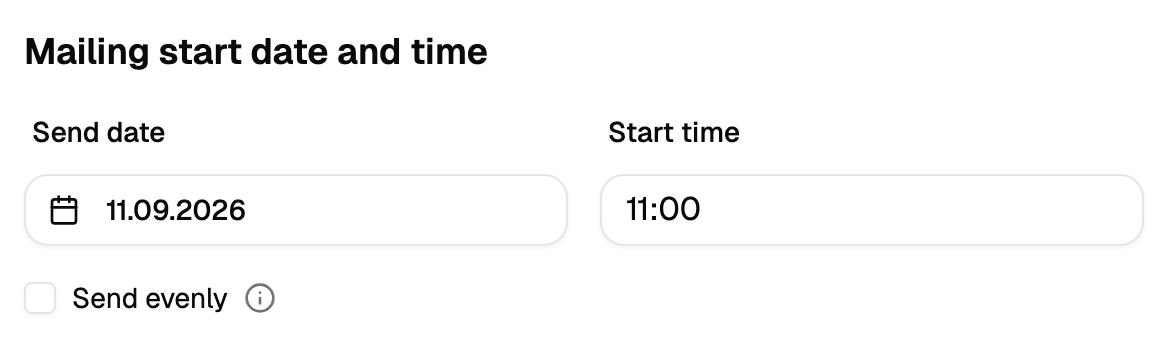
Now, or at a chosen date and time. Two settings belong to a campaign alone and live here.
Send evenly. Tick it and the single time field becomes a pair, from and till: the campaign spreads its messages across that interval instead of firing them at once. Use it when the answer comes back to you — a support line that would drown if a thousand people read the same offer in the same minute.
Mailing is valid until sits a little lower, among the advanced options. After that moment the campaign stops trying. A message that has not reached a switched-off phone by then is not delivered at all, and that is usually what you want for anything time-bound: a code, an invitation, a reminder about today.
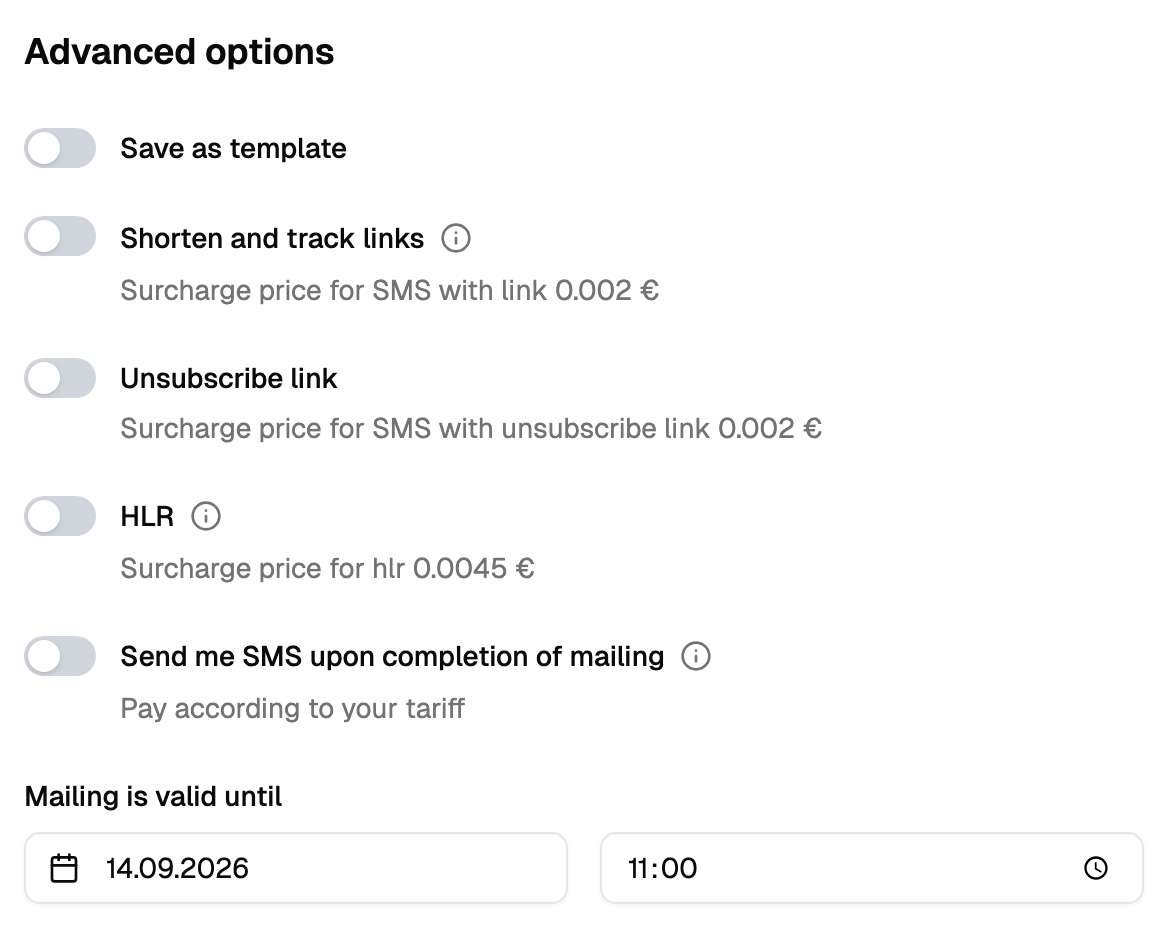
The switches above it are the same ones the settings page describes, and the line under each says what it adds to the price.
What happens after you press send
The campaign does not go out in the instant you click. It is prepared first — duplicates removed, the black list applied, numbers checked — and you see that happening:
- a progress readout appears right where you are, counting up to 100%;
- the campaign shows up in Manual mailings straight away, in the preparing state;
- when it finishes, the campaign card holds the real numbers.
Preparation is work that runs in the background — you can leave the page and come back to it.
Sending the same text twice in one day
The same text to the same recipients on the same day counts as the campaign you already created — deliberate protection against a double click and a repeated tab. Change the text, or send it the next day, and it goes through.
Limits, prices and the set of available options are tuned to your account. This documentation gives the meaning rather than the figure: the current value is always shown on the screen, next to the field it applies to.